The idea
The kit catalog starts wide and lets you narrow it to your situation. Filters describe each kit by what it is for: scenario, outcome, timeframe, climate, price, and what it contains. If you have a finished BeReady plan, the page can pre-fit the whole catalog to it in one tap.
Using it
Open BeEquipped > Kits. You land on every available kit, grouped by scenario, with a filter rail on the left, a search-and-sort toolbar across the top, and a running kit count on the right.
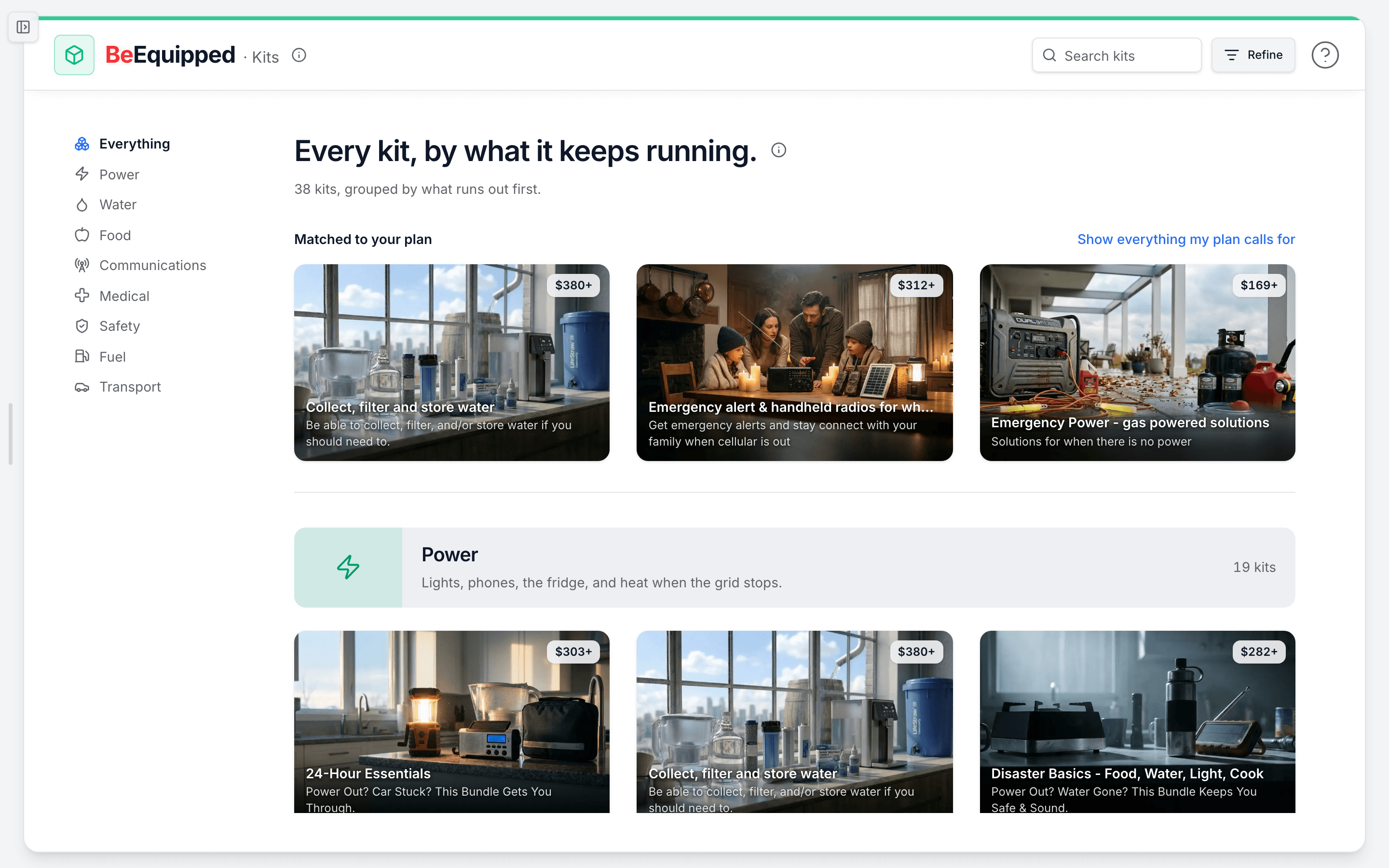
- Search by keyword. Type in the "Search kits..." box at the top. It matches a kit's name and description, so a word like "water" or "winter" narrows the grid as you type. Use the X to clear it.
- Filter in the left rail. Each section is a checklist with a live count next to every option:
- Scenario is the event the kit is built for. Pick one scenario and a Sub-scenario drill-down appears beneath it for finer focus.
- Outcome it addresses is the result you want, for example staying warm or staying fed.
- Timeframe uses a slider to set how long the kit should sustain you, from shortest to longest.
- Climate matches kits to your conditions.
- Price uses a slider to set a range.
- Kits that contain filters to kits that include a specific essential category. You can stack filters across sections. The counts update as you go, so you always see how many kits each option still has.
- Sort the results. Use Sort by in the toolbar: Featured, Price (low to high or high to low), Name (A-Z), Most items, or Most coverage.
- Change the grouping. Group by controls how results are clustered: Scenario (the default), Outcome, Price band, Timeframe, or No grouping for a flat grid. When grouped, you also get Compact / Comfortable density and Expand all / Collapse all.
- Read your active filters. Every filter you apply shows as a chip below the toolbar. Click a chip to drop just that one, or Clear all to reset.
- Open a kit. Click any card for a quick-view of what is inside, without leaving the page.
Match it to your plan
If you have a completed BeReady plan, the page knows which scenarios you chose. Click Match my plan at the top of the filter rail (marked "Auto-fit"). It filters the catalog to your plan's scenarios and sorts by Best fit, your plan, so the most relevant kits rise to the top.
With a plan applied, cards carry a green "{n}% match, your plan" badge. That percentage is the kit's best fit against your plan's scenarios, scored in your report, so a higher number means a closer match to what you actually planned for.
What to do when ...
- No kits show up. You have likely stacked filters tighter than any single kit covers. The page says "No off-the-shelf kit covers all of that" and offers two buttons: Clear all filters to loosen up, or Build a custom kit to assemble one item by item to your exact requirements.
- You want to undo just one filter. Click its chip below the toolbar rather than clearing everything.
- You see "Save X% with Combo". That badge means a kit discount is available to Combo members and applies automatically at checkout. Combo members instead see "X% off applied," and each card already shows the Combo price.
How people actually use it
A parent in a wildfire-prone area types "evacuation" in search, picks their Climate, and sorts by Most coverage to see the broadest go-bags first. A BeReady subscriber skips the manual filtering: they tap Match my plan, scan the green match badges, and open the two highest-percentage kits to compare what is inside.
Where this fits
Browsing kits is the "Have supplies" step of the loop, right after "Have a plan." If you have not built your BeReady plan yet, do that first so Match my plan can do the narrowing for you. If a kit is close but not exact, Build your own lets you tailor it. From here, add kits to your cart to check out.