The idea
BeAware only sends what you have switched on, through a channel it can actually reach. A quiet inbox usually means one toggle is off, your phone or email needs a quick check, or nothing near you has crossed an alert's built-in threshold yet. Work down the checklist below and you will know which one it is in a couple of minutes.
Walk the checklist
Open Alert Settings from the BeAware menu. Each alert has three channel checkboxes: Email, SMS, and WhatsApp. This screen is where most fixes happen.
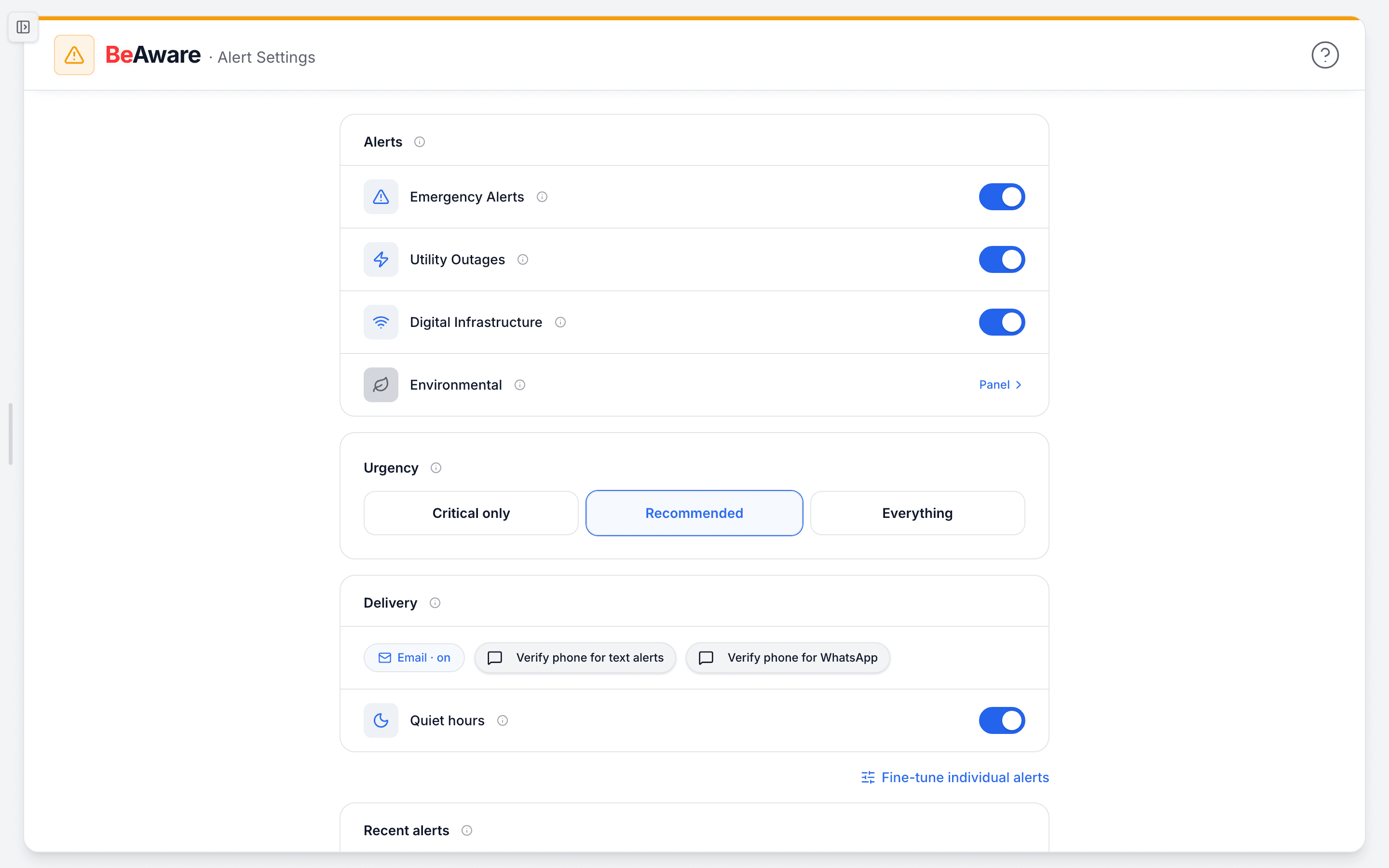
- Confirm the alert itself is on. Find the alert you expected, for example "Severe Storms & Wind" under Unified Alert System, or "Alerts Near Me" under Utility Alerts. Check that at least one channel box is ticked. A row with every box empty sends nothing. The checkbox at the start of each row toggles all three channels at once, and the checkbox in the group header toggles the whole group.
- Confirm the channel you watch is on. It is common to have an alert enabled on WhatsApp while you are actually watching email. Tick the column you read for that alert. Changes save on their own, and you will see "Alert preferences updated" when they do.
- Check the contact details behind the channel. SMS and WhatsApp can only reach you if a mobile number is on file, and email only lands if your address is verified. Open your account Profile, confirm your phone number is there and your email shows as verified, then come back.
- Check that your inbox is not filtering us. A verified email that never arrives is usually sitting in spam or a promotions tab. Search for the sender, mark it "not spam," and add it to your contacts so the next alert lands in your inbox.
- Know the built-in scope of each alert. Two utility alerts have a fixed range by design. "Alerts Near Me" only fires for outages within 5 miles of your registered address. "Large Power Outages" only fires when an event affects 1,000 or more customers on your utility. A smaller or farther event will not notify you. That is expected, and it keeps the noise down.
- Confirm your address is on file. Area alerts, like IPAWS emergencies and nearby outages, are matched to your saved address. If you recently moved or never finished setup, add or update your address so BeAware knows where to watch.
What to do when ...
- You see "Failed to update preferences": your last change did not save. Toggle the box again. If it keeps failing, reload the page and retry.
- Email arrives but SMS and WhatsApp do not: the alert is working and the phone path is not. Add or correct your mobile number in Profile.
- Nothing has arrived on any channel: your area may simply be quiet. Open the BeAware dashboard. If the monitoring tabs show no active outages or alerts near you, there is nothing to send yet. That is the normal, calm state.
- You expected an outage alert that never came: check that the event was within 5 miles (Alerts Near Me) or above 1,000 customers (Large Power Outages). Outside those limits, no alert is sent.
How people actually use it
One member in a storm-prone county noticed friends getting tornado texts while their own phone stayed silent. They opened Alert Settings, saw that "Severe Storms & Wind" had only the Email box ticked, turned on SMS, and got the next warning by text. Another member moved across town and stopped seeing nearby-outage alerts. The fix was adding the new address in Profile so the 5-mile radius recentered on the right home.
Where this fits
Alerts are the "Watch for change" step in your preparedness loop, the link between knowing your risk and acting on a plan. If you are setting alerts up for the first time or want the full walkthrough, see Set up alerts.