The idea
Your plan is only as personal as what we know about your home. The wizard walks you through seven short steps, each asking one focused thing, so the plan you get back fits your address, your household, and the disruptions you actually want to be ready for. Nothing here is graded, and you can change any answer right up to the moment you generate.
Using it
Open the wizard from BeReady, Plans, Create a plan (or go straight to /beready/plans/new). A stepper across the top shows where you are. Back and Continue sit at the bottom, and Continue stays dimmed until the current step has what it needs.
-
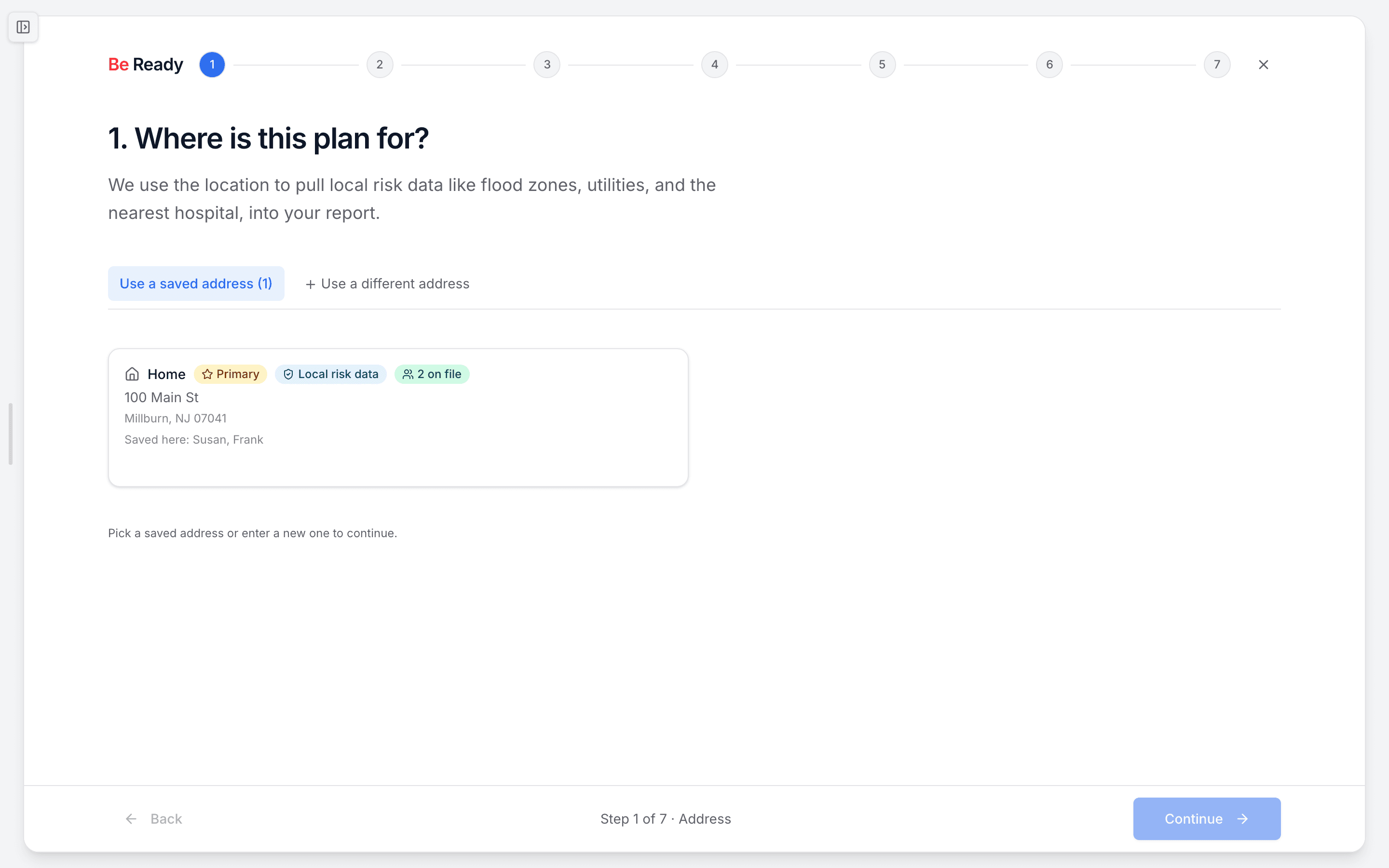
Address, "Where is this plan for?" Pick a saved address, or choose Use a different address and start typing so autocomplete can fill the rest. Give it a short Label like "Home" so you can tell plans apart later. This location is what pulls in your local risk data, including flood zones, utilities, and the nearest hospital.
-
Household, "Who's in your household?" Add each person and pet. Every person needs a name, and a household needs at least one person, so a pets-only roster can't continue yet. If you've built a household before, use Import to pull a saved roster in and edit from there. Names stay private.
-
Configuration, "Tell us about your configuration." There are four cards, and only the first is required:
- Backup power (required): None, portable gas generator, portable solar or battery station, whole-home generator, home battery, or more than one. This is the answer that gates Continue, because the plan branches hard on it. Think fridge, freezer, and any power-dependent medical devices.
- Water and sewage: municipal or private well, municipal or septic. This drives the sanitation and water guidance for when service is interrupted.
- Household skills: rate first aid and CPR, fire safety, and navigation so we know what to teach you.
- Out-of-state contact: an optional name, phone, and relationship for someone outside the disaster footprint, which helps when local cell networks are jammed. Skip it if you'd rather not share.
-
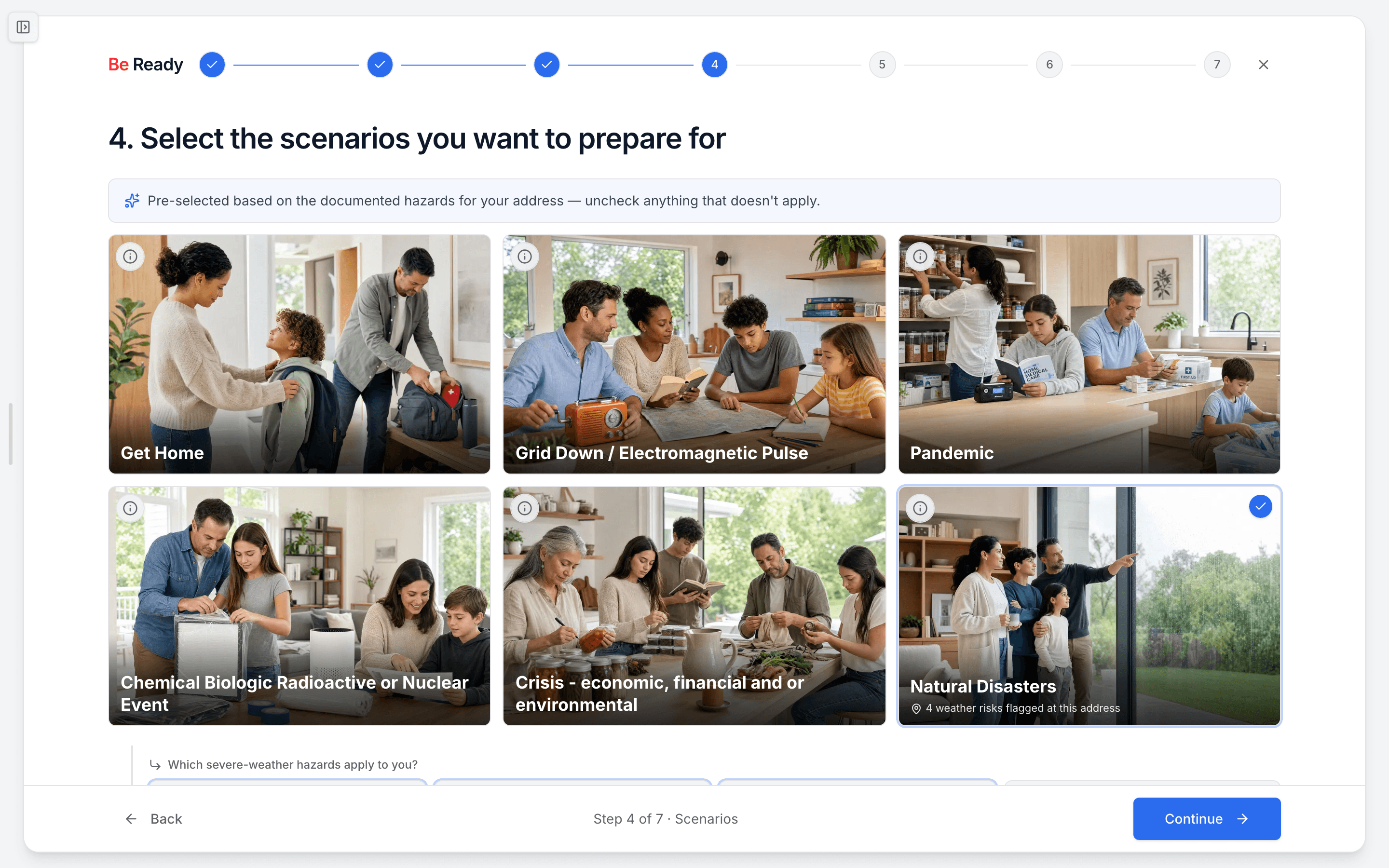
Scenarios, "Select the scenarios you want to prepare for." Tap the cards for the events you want covered, at least one of them. Pick severe weather and a sub-grid opens for the specific hazards: flood, wildfire, hurricane, tornado, winter storm, and earthquake. If you're a Combo subscriber with a finished BeAware Baseline Report, some scenarios may already be checked based on the documented hazards for your address. Uncheck anything that doesn't fit.
-
Outcomes, "What impacts do you want to plan for?" These are the day-to-day effects of those scenarios, like no electricity, no clean water, or sheltering in place. Pick at least one. They shape both the plan's advice and the supplies it recommends.
-
Duration, "How long do you want to plan for?" Choose a window: 3 days, 1 week, 1 month, 3 months, or 1 year. Longer windows expand the report's depth, so pick the kind of disruption you actually want to ride out.
-
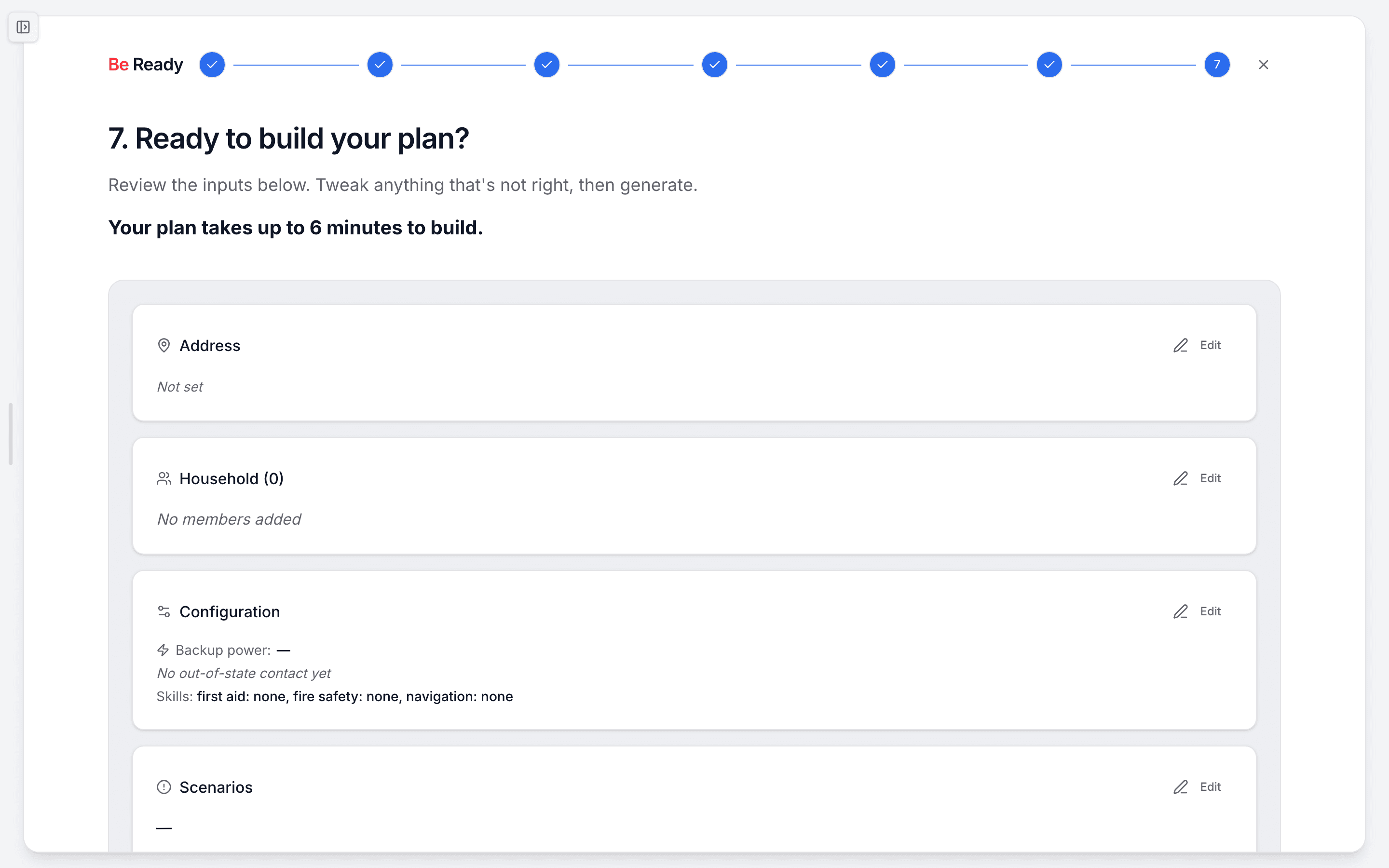
Review, "Ready to build your plan?" Every section is summarized with an Edit link back to that step, so you can fix anything that's off without losing the rest. Check the one-line acknowledgement that this is a personalized starting point rather than professional advice, then press Build my plan. Generation takes up to 6 minutes, and the plan opens on its own when it's ready.
What to do when ...
- Continue is greyed out. The step is missing something required. A short amber note lists exactly what, usually a missing address, a person without a name, no backup-power choice, or no scenario or impact selected.
- You see a baseline step first. Combo subscribers (BeAware plus BeReady) without a finished Baseline Report get a one-time nudge to generate it first, since it sharpens the plan. You can skip and continue if you'd rather.
- You close the tab mid-wizard. Your draft is saved for 7 days. Reopen the wizard and a "Welcome back" banner restores it. Use Start over to clear it and begin fresh.
- "Build my plan" won't activate. Tick the acknowledgement checkbox above it. That's what unlocks the button.
How people actually use it
A parent of two in a hurricane-prone county picks their saved home address, adds both kids, marks "None" for backup power, selects severe weather then hurricane along with the no-electricity and no-clean-water impacts, sets a 1-week window, and has a plan in a few minutes.
Someone on a private well and septic system fills in those two answers under Configuration, then gets a plan back with sanitation and water-pressure guidance written for their setup instead of generic city-water advice.
Where this fits
This is the "Have a plan" turn in the loop: know your risk, watch for change, have a plan, have supplies, practice, get expert help. Once your plan is generated, you'll find your supply list, drills, and skills built around it and ready to put into practice. See /help for the next steps after your first plan.